
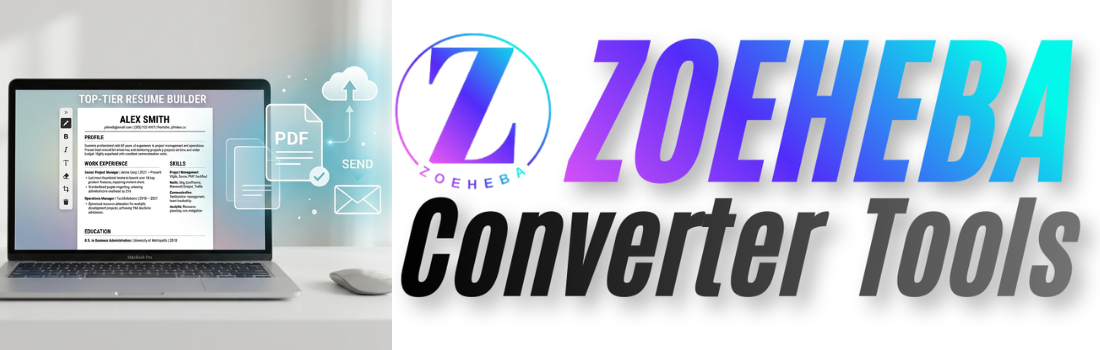
Creating a professional resume does not have to be complicated. A good resume should make it easy for a recruiter or hiring manager to quickly understand your experience, skills, education, and qualifications.
For most job applications, a PDF is also a practical format because it helps preserve your resume's layout and formatting across different devices.
In this guide, you'll learn how to create a professional resume PDF online, what information to include, how to choose a suitable template, and what to check before sending your resume to an employer.
What Makes a Resume Professional?
A professional resume is not simply a document with an attractive design. The most important thing is that the information is clear, relevant, and easy to scan.
A good resume should have:
- A clear and readable layout
- Accurate contact information
- A concise professional summary
- Relevant work experience
- Important skills related to the job
- Education and certifications where relevant
- Consistent fonts, spacing, and formatting
- No unnecessary information or distracting design elements
The goal is simple: someone should be able to look at your resume and understand your professional background without having to search through large blocks of text.
What Should You Include in a Resume?
The exact sections of a resume depend on your experience and the type of job you are applying for. However, most professional resumes include several common sections.
1. Name and Contact Information
Start with your name and essential contact details. You can include your phone number, professional email address, location, and relevant professional links such as LinkedIn or a portfolio.
Avoid using an unprofessional email address. If necessary, create a simple email address using your name.
2. Professional Summary
A short professional summary can help introduce your background and strengths.
Keep it concise and focus on your experience, skills, and the type of value you can bring to the role.
3. Work Experience
List your relevant work experience, starting with your most recent position.
For each role, include the job title, company name, dates of employment, and a few concise bullet points describing your responsibilities and achievements.
4. Skills
Include skills that are relevant to the position you are applying for. Avoid adding a long list of unrelated skills simply to make the resume look more complete.
5. Education
Add your relevant educational qualifications, including the institution, degree or qualification, and dates where appropriate.
6. Certifications, Projects, and Achievements
Depending on your background, you may also include certifications, personal or professional projects, awards, achievements, or other relevant information.
Not every resume needs every possible section. Only include information that helps demonstrate why you are a suitable candidate.
Choose the Right Resume Format
Before creating your resume, decide which format best represents your experience.
Chronological Resume
A chronological resume focuses on your work history and normally presents your most recent experience first. It is a common choice for people with a clear career history.
Skills-Based Resume
A skills-based resume focuses more heavily on skills and capabilities rather than a traditional employment timeline. It can be useful in certain career-change or experience-light situations.
Combination Resume
A combination resume brings together professional experience and skills. This can be useful when you want to demonstrate both your career history and specific capabilities.
For many job seekers, a clean chronological or combination resume is a practical starting point.
Use a Professional Resume Template
Starting with a blank document can make resume design unnecessarily difficult. A ready-made template can provide a professional structure while allowing you to focus on your actual content.
Depending on your needs, you might choose a:
- Modern resume template
- Professional resume template
- Minimal resume template
- Student resume template
- Executive resume template
- One-page resume template
The best template is not necessarily the one with the most visual elements. Choose a design that makes your information easy to read and suits the type of job you are applying for.
If you don't want to design a resume from scratch, you can explore Zoeheba's resume templates and customize a suitable design using the PDF Builder.
How to Create a Professional Resume PDF Online
Once you have selected a suitable format and template, you can start creating your resume.
Step 1: Choose a Resume Template
Select a template that matches your profession, experience level, and the type of job you are targeting.
A simple and professional design is usually a safer choice than a highly decorative layout.
Step 2: Add Your Personal Information
Replace the sample information in the template with your own name and contact details.
Make sure your phone number and email address are correct because these are the details an employer may use to contact you.
Step 3: Add Your Professional Summary
Write a short summary that explains your professional background and key strengths.
Avoid generic statements that could apply to anyone. Instead, mention your actual experience, skills, or area of expertise.
Step 4: Add Your Work Experience
Add your relevant employment history and describe your responsibilities using short bullet points.
Whenever possible, focus on achievements instead of simply listing tasks.
For example, instead of writing:
"Responsible for managing the company website."
You could write something more specific, such as:
"Managed and improved the company website to improve usability and page performance."
Step 5: Add Skills and Education
Add the skills that are relevant to the position and include your educational qualifications.
If you have certifications, projects, or other achievements that are relevant to the job, you can add those as well.
Step 6: Review the Design
Before exporting your resume, review the entire page carefully.
Check the font sizes, spacing, alignment, headings, bullet points, and overall readability.
Your resume should look consistent from top to bottom.
Step 7: Export the Resume as a PDF
Once you are satisfied with the content and design, export or download the finished resume as a PDF.
PDF is useful because it helps preserve the document's layout when you share it with recruiters or upload it to job application platforms.
With Zoeheba PDF Builder, you can start with a ready-made resume template, customize the content, and create your finished PDF without designing the entire document from scratch.
How to Make Your Resume More Effective
A professional-looking resume is useful, but the content is what communicates your experience.
Focus on Achievements
Where possible, describe what you achieved rather than only listing what you were responsible for.
Numbers can make achievements more specific. For example, you might mention improvements in performance, sales, customer satisfaction, project delivery, or efficiency when those numbers are available.
Keep Bullet Points Short
Large paragraphs can make a resume difficult to scan. Use concise bullet points that communicate one idea at a time.
Match Your Resume to the Job
Different jobs require different skills. Before applying, review the job description and make sure your resume highlights the experience and skills that are actually relevant to that position.
Prioritize Readability
Don't sacrifice readability just to make your resume look more creative.
Use clear headings, reasonable font sizes, consistent spacing, and enough white space between sections.
Common Resume Mistakes to Avoid
Even a good resume can be weakened by small mistakes. Before sending your PDF, check for the following:
- Spelling and grammar mistakes
- Incorrect phone numbers or email addresses
- Inconsistent dates
- Very long paragraphs
- Too many colors or decorative elements
- Irrelevant information
- Unprofessional email addresses
- Inconsistent fonts and spacing
- Broken links
- Extra blank pages
- Incorrect or outdated work information
How to Name Your Resume PDF
Don't leave your resume with a generic filename such as resume.pdf or finalresume123.pdf.
Use a clear and professional filename that makes the document easy to identify.
For example:
John-Smith-Resume.pdf
If you are applying for a specific position, you can also use a filename that includes the role when appropriate.
Resume PDF Checklist Before Applying
Before uploading or emailing your resume, take a final minute to check the document.
- Is your name clearly visible?
- Are your phone number and email address correct?
- Is your professional summary relevant?
- Are your most important skills easy to find?
- Are your work dates accurate and consistent?
- Have you removed unnecessary information?
- Have you checked spelling and grammar?
- Does the PDF open correctly?
- Does the layout look good on the final PDF?
- Is the filename professional?
Create Your Resume PDF with Zoeheba
You don't need advanced design skills to create a clean and professional resume.
A simple workflow can be:
Choose a template → Customize your content → Review your resume → Export as PDF
Zoeheba's Resume Templates provide ready-made designs that you can customize for different professional needs. You can then use the PDF Builder to edit your resume and create the final PDF.
This approach can save time compared with designing a resume completely from a blank page.
Final Thoughts
Creating a professional resume PDF is less about using a complicated design and more about presenting your experience clearly.
Start with a clean structure, include relevant information, focus on measurable achievements, and make sure the final document is easy to read.
Once your resume is ready, export it as a PDF and review the final file before submitting your application.
If you want to start with a ready-made design, explore professional resume templates and customize one using Zoeheba PDF Builder.
Frequently Asked Questions
Can I create a resume PDF online?
Yes. You can create a resume online using a ready-made template or by designing one from scratch, then export the finished document as a PDF.
Is PDF a good format for a resume?
PDF is commonly used for resumes because it helps preserve the document's formatting and layout when shared or viewed on different devices.
How many pages should a resume be?
The ideal length depends on your experience and the job. Many early-career candidates can keep their resume to one page, while candidates with substantial relevant experience may need more space.
Should I use a resume template?
A resume template can save time and help maintain consistent formatting. Choose a simple template that keeps the focus on your experience and skills.
Can I create a professional resume without design skills?
Yes. Using a professionally designed template makes it possible to create a clean resume without having to design the entire document yourself.
👉 Try the Zoeheba PDF Builder now and perfect your PDF instantly!
👉 🔗 Try it now: https://zoeheba.com/pdf-builder
👉 10 Best Free PD...
Looking for the best free PDF tools? Discover...
 (1).png)
👉 PDF vs Word: Wh...
Confused between PDF and Word documents? Lear...
👉 Why You Should...
Sending a large PDF by email can be frustrati...
👉 Top 10 PDF Tips...
Students work with PDFs almost every day—whet...
👉 How to Create a...
Learn how to create a professional resume PDF...